[I]t's a mistake to think you can simply clone an 80GB drive to a 500GB drive, swap the drives, and go about your business.
Thursday, October 15, 2009
Upgrading my laptop's hard disk: Postscript to the addendum
Wednesday, October 14, 2009
Upgrading a laptop hard disk: Addendum
- Make sure I have a good backup of all the documents on the old hard drive. By "documents," I mean my photos, databases, client invoices and contracts, etc.
- Make sure I can recover important settings from the old hard drive - installation licensing codes, passwords, preferences where they're really important, etc. Note that I don't care about having actual backups of these things.
- Make sure I have the installation disks or master installation files so I can reinstall the operating system and all my applications later. Exception: Don't need master disks for items that can be downloaded on the Internet (like Google Chrome and Picasa).
- Remove the old hard disk and set it aside in a safe place.
- Put the new hard disk into the computer.
- Boot computer from the operating system CD, format the new disk, and install the operating system fresh.
- When I'm able to boot the computer from the operating system on the internal hard disk, add necessary drivers.
- Reinstall applications and reconfigure as necessary.
- Copy the documents from the backup source to the new hard disk.
Tuesday, October 13, 2009
Upgrading my laptop's hard disk
Hardware
Since I really didn't know what I was doing at all, I started in Dell's support forums. A helpful user explained that any 2.5" 9mm SATA drive should work in my Latitude D820. The same user also explained how it's done. You put the new drive in an enclosure and attach it to the computer; use cloning software to copy the entire contents of the internal (old) drive to the external (new) drive; shut down the computer and swap the drives; restart and go back to work. Armed with this info I headed off to Fry's Electronics. I purchased two products. First, a Seagate 2.5" SATA drive: 500 GB, 7200rpm, 16MB buffer/cache. And second, the Apricorn EZ Upgrade Universal Hard Drive Upgrade Kit.The Apricorn EZ Upgrade kit made the hardware upgrade easy. Following the clear instructions, I installed the new drive in the Apricorn drive enclosure. I put the Apricorn CD into my CD drive and installed the software. Then I was able to use the software to clone my internal (old) hard drive, that is, to copy everything from my old 80GB hard drive (including invisible files) over to the new 500GB drive. This took several hours. When the copying was done, I shut down the computer, removed the old drive from the computer and removed the new drive from the enclosure, and then swapped them. I was able to boot the computer from the new drive. Success! Good job, Apricorn!
Software
The hardware upgrade was easy, but unfortunately, it's not the end of the story. In fact, it is just the beginning.I did the hardware upgrade on Monday night. On Tuesday morning, when I started up in the hope of getting back to work, I noticed the my antivirus etc software - Microsoft's One Care - was complaining that it wasn't working properly. I visited Microsoft's web site, found some troubleshooting info there that allowed me to check the active services and (apparently) correct the problem.
Then another problem appeared. After was I had been working for about 20 minutes, my laptop's screen went dark. The laptop didn't seem to go to sleep or shut down - I just lost the display, and I could not bring the display back by moving the mouse, touching a key or even touching the powerkey. Had to hold down the power key 10 seconds to force the computer to shut down, then reboot. I went back to work, and about 15-20 minutes later, it happened again. Can't work like that, so it was time to call for help.
Seagate tech support was easy to reach and courteous, and seemed to want to help, but the guy I spoke to said that, if the computer boots correctly and seems to be working (at least until the screen goes dark), then it is probably not a hard drive problem. I'm a bit skeptical because earlier versions of the drive I bought got bad consumer reviews online. But Seagate's a great company, and I've had good experience with many previous Seagate drives. He recommended that I contact Dell.
Dell
So I called Dell.The tech support guy I reached in the morning (William) asked me to run the hardware diagnostics. I did and no errors were found. So he suggested that I upgrade my BIOS and also the driver for my NVidia video card. I did both upgrades and for a while, things seemed to be working all right.I was able to work for more than 20 minutes so far, without the screen going dark. But then I got a blue screen - something I haven't seen very many times in the four years since I started using Windows more than the Mac OS. The blue screen reported that I had experienced a "bad_pool_header" error.
So in the afternoon I called Dell again and got another support technician (Jose). More tests - and more blue screens, always the same. He took control of my computer and ran some diagnostics. We tried using the Windows installation disk to repair my installation. That didn't work either. The blue screens continued. After spending most of the day on the phone with the Dell techs, I finally had to get off the phone around 6pm to cook and eat dinner. But before I started cooking, I started the process of reinstalling Windows XP completely.
In the evening, after dinner, I returned to the computer and completed the installation of Windows. When I was finished, I was surprised to learn that I could not get to my wi-fi network. No wireless driver installed. The techs seemed to think that I should have a separate disk labeled "Drivers" but I don't, and I didn't seem to get such a disk with any of my other Dell computers, either. Anyway, called Dell a third time, got a new tech (John). With his help, I was able to download the wireless driver to my Dell desktop machine, copy it to a USB thumb drive and then install it from there on the laptop. After getting the Latitude D820 back on the wireless network, John took over my computer and installed the other necessary drivers. When that was done I did a little cleaning up, and started trying to restore files from my online backup account with Carbonite. I gave up well after midnight, leaving the computer to continue downloading files while I tried to sleep.
Are we there yet?
Not done yet, alas. This morning I woke up and started installing updates and critical apps like FileMaker Pro Advanced. As arranged the day before, Jose (the Dell tech I spent my afternoon with yesterday) called me back to see how the reinstallation had gone. I told him that, somewhat to my surprise, it appeared that the documents from the hard disk had survived the installation but that they were now in a folder to which I was denied access, even if I logged in as Administrator. He explained that I had failed to erase the hard disk properly when I did the install, and he recommended that I do the installation again, but this time that I delete the existing partition and format the disk before installing.You can imagine how excited I was about that suggestion, but right is right, so I have taken his advice. I'm now a few minutes from the completion of the clean install....
Wrap up
So, here it is Wednesday night - exactly 48 hours after I began the process of replacing my old hard drive with the new one. I got my new drive formatted (i.e. totally erased!) this afternoon and I got Windows XP re-reinstalled. After my original reinstallation last night, I tried restoring files from my Carbonite backup, which would be great, except that it meant downloading everything over the Internet, and that was turning out to be pretty slow. So today, I took the new drive out of the computer, put the old drive back in, started the computer, and then copied the documents that I want to keep from the old drive to an external drive. Then I swapped the new drive back into the computer, booted, and copied the files from the external drive to the internal hard drive. Now I'm reinstalling applications. By the time I go to bed tonight I should be back in business. And I only lost two whole days!I typing this with my fingers crossed (harder than it sounds) but it seems right now that everything is stable and working well. No blue screens, no video blackouts. I'm not going to be completely comfortable for a couple of weeks. Some of the folks who complained about an earlier version of the Seagate drive I installed said that their drives worked fine for the first couple of weeks. But I'll get Carbonite backing me up again tomorrow, so I should be in good shape.
Moral
So what have we learned, boys and girls? I've learned a couple of things.- Installing a new hard drive in a PC isn't as hard as I thought it would be.
- A low-level reformat of a 500GB hard drive takes a couple of hours.
- Installing Windows XP itself from scratch isn't a big deal, but getting all those drivers installed is exhausting. I give Dell credit though for guiding me very well on its web site. I put in my express service code (sort of an ID for my laptop) and dell.com told me just what to install.
I hate computers.
Monday, March 02, 2009
It's Casimir Pulaski day!
Pulaski was a brilliant Polish cavalryman who volunteered his services to General Washington during the Revolutionary War. He died from injuries suffered during one of his engagements but not before distinguishing himself and coming to be recognized as the Father of American Cavalry.
Wednesday, February 18, 2009
T-Mobile Dance
T-Mobile Dance on YouTube
Monday, February 09, 2009
G1 photography with Snap Photo
This photo of my dining room was taken with the G1 using Snap Photo rather than the default Camera app. Post processing in Pic Say.
Snap Photo uses the G1's accelerometer (!) to provide digital image stabilization. Seems to work. Keep in mind that this was a low-light challenge. No flash, no sunlight, just one incandescent light.
I adjusted saturation in Pic Say but color in the original shot was better than I expected because Snap Photo let me adjust the WB.
Sunday, February 08, 2009
A better browser for Android: Steel
Haven't gotten the 1.1 firmware update yet, but I am happy to have discovered something really good for Android: the Steel browser.
Steel has a touch-screen interface, including an on-screen keyboard. I still don't want to type a lot on a virtual keyboard, but it's very useful to have the option for, say, entering a url or password.
Steel also displays pages really nicely. I think the Opera mobile browser is downright ugly. The default browser built into Android - NOT Chrome, as I understand - displays pages quite well. Steel just does better.
#
Saturday, February 07, 2009
You don't have to be a tech genius to outsmart malware
Notice that the presentation looks "official," but is in fact completely generic. Next we got the following messages:
Behind the dialog in front there is a dialog with the even more official-looking title "Windows Security Alert," showing a list of allegedly infected files.
It looks official. But wait a minute. Does Windows ever display the hierarchy of my hard disk in Firefox? If Windows ever wants to use a browser, it launches Internet Explorer.
The other strange thing here is, the front dialog - the one that's telling me to download Antivirus 360 - is coming from the web page antimalwarescaner-dot-com. (WARNING. Don't go there!) I use Microsoft's OneCare to protect my Windows computers. If malware is detected on on my computers, I expect to get an alert from Microsoft OneCare - not from some web page I've never heard of before.
In short, I knew that I didn't want to say okay to these warnings. Instead of clicking OK, I clicked the red "x" to close the window. Unfortunately, my efforts to cancel these dialogs were ineffective. The dialogs kept popping up. That was an additional clue that something was wrong and this not a valid alert.
When this happened on my wife's computer, I ended up holding down the powerkey for 10 seconds to shut down the computer. Two days later, the same thing happened on my computer, and I got out by hitting cntl-alt-delete and quitting Firefox.
A little Web research fairly quickly explained that the problem is due to a piece of malware called Antivirus 2009. It's a piece of "rogue security software" that "hijacks" your web session and redirects you to somewhere you don't want to go. Rogue security software is like a bad cop. Hijacking is like, well, like being hijacked. Ever landed on a porn site by accident? You got hijacked. Anyway, I knew that I didn't want to GO to the web site identified as the source of the alerts, so instead, I Googled it. That search led me to this page, which in turn referred me to the excellent site malwarebytes.org. I downloaded Malwarebytes's freeware utility Anti-Malware, installed it, let it update its database, and ran the default quick scan. No virus found. Whew.
What's the moral here? You don't have to be a tech genius to outsmart malware. If you don't know where something coming into your computer is coming from, block it. Don't open email attachments unless you know who sent them and what they contain. And don't let web sites do anything to your computer unless you're really sure you trust the site. In short,
- stop
- take a deep breath
- THINK
Thursday, February 05, 2009
Speed Dial add-on for Firefox 3
One of the things I liked about Google's new browser, Chrome, is the way it displays thumbnails of my most frequently visited pages when I open a new tab. But there was a lot to dislike about Chrome, as well. First, Chrome displayed 9 thumbnails only. Second, it didn't ever seem to update them. Third, I had no control over what thumbnails were displayed. And I should add, fourth, Chrome doesn't support add-ons.
Which is why I still use Firefox 3 for 90% of my browsing. One of Firefox's biggest advantages is that it supports add-ons. Among my favorite add-ons are FireFTP (a full-featured ftp client built right into Firefox), Deng Google Bookmarks, Tiny Menu and Scribefire. Scribefire is a blog editor: I'm using it right now to write this post, because it's a better editor than the one built into Blogger. Anyway, my newest favorite add-on for Firefox is Speed Dial.
Speed Dial displays thumbnails of web sites, much as Google Chrome does. You can load the thumbnails any time you want - or you can configure Speed Dial so the thumbnails are loaded when you create new tabs and/or windows. Click a Speed Dial thumbnail, the page loads, just as in Chrome.
But with Speed Dial, I can have more than nine thumbnails. I can assign pages to any location in the thumbnail list. Note in the screen shot that I've configured Speed Dial to display 16 locations, and some of the locations are, at the moment, unassigned. Better still, I can have more than one list. Note above the thumb nails that I've configured two different lists, my A list, and a B list with less important sites. Finally, with Speed Dial, I don't have to view the thumbnails at all, because Speed Dial allows me to type a site's location number to load the site. In other words, to get to my Gmail account, I just type cntl-3. To get to The Online Photographer blog (one of my favorites), I type cntl-1-5, that is, I hold down the cntl key and type a 1 and then a 5. Brilliant.
Thursday, December 18, 2008
Carbonite works!
But did I panic? I did not. I went to http://carbonite.com, logged in, and in two or three seconds I learned how to restore a single file from my Carbonite backup disk. A minute or two later, I had restored last night's backup of the to-do database and I was back in business. I can't really see how it could have been much easier.
I've been using Carbonite for a while. It's cheap ($50 a year) and easy. It has some limitations, of course. It won't backup data on external drives, like the large external drive that I use to store photographs. So I have to use a more complicated system to back up photos. But for the stuff on my computer's internal drive, Carbonite can't be beat.
Wednesday, November 19, 2008
The compact camera I would buy today if I had any money: Panasonic Lumix DMC-LX3K
The camera's not perfect. Two problems mentioned in the reviews that would make me hesitate are, first, handling is a bit awkward for folks like me with biggish hands; and second, its raw files aren't supported by Adobe. The latter problem sounds like something that will be fixed sooner or later - probably sooner, especially given the reviews the camera's getting. As for the handling, well, I guess I'd want to get to a bricks-and-mortar store and handle one to see how it feels.
Still, there are some real strengths to offset those disadvantages. Like the sensor on my Pentax K20D, the sensor in the DMC-LX3K has been reengineered so that the photosites themselves are larger, and that helps reduce noise. And there's that lens! It's a 24-60mm (35mm equivalent) f/2-f/2.8 Leica DC Vario-Summicron. These are impressive specs. Digital SLRs typically come with kit lens that only go as wide as 28mm (35mm equivalent). This is one of the reasons I really love my Pentax 16-45mm f/4 lens: On a Pentax DSLR, that 16mm wide angle = 24mm field of view. Well, the Lumix DMC-LX3K has that same 24mm FOV. And while my Pentax 16-45 only goes to f/4, the DMC-LX3K goes to f/2 (!) wide open, and can get to f/2.8 at 60mm. Impressive. It's funny how things change, well, at least for me. When I got back into photography a little before we went to China, what I really wanted was long telephoto reach, so I could shoot birds and such. These days, I'm willing to trade long for wide.
While some would disagree, I would also count it as an advantage that the DMC-LX3 has "only" 10 MP. Sheesh, 10 MP is plenty for a compact camera! There's no point in increasing resolution unless you're really getting something in return. The lenses on most compact cameras can't provide resolution that matches the sensors already. So if you're using a Canon G10 or a Nikon P6000 (14 and 12 MP respectively) there's a good chance you're getting nothing in return for filling up your hard disk faster.
Anyway, 24-60mm (35mm equivalent) f/2-f/2.8 lens sounds wonderful. If you really need a digital SLR, well, this isn't a digital SLR. But if you don't need a DSLR but want to take outstanding photos or people or landscapes, or if you already have a DSLR and just want a really good compact camera to carry around when your DSLR would be too big, then the Panasonic Lumix DMC-LX3K sounds terrific. There's a new compact camera on the market almost every week. This one however seems a bit different.
Friday, November 14, 2008
Followup re TooDo on Android
Edouard also corrected a mistake that I made in the post. I said that TooDo automatically senses your context. Not so. There's a simple "Change Context" button in TooDo's menu that you can use whenever you want to few tasks for a different context - but it's manual, not automatic. I was also playing with Locale last night and I must have gotten TooDo and Locale confused as I was posting late at night. Locale will automatically sense that you've left home and turn on or off certain settings on the phone automatically. I am grateful to Edouard for the correction and for his continuing hard work on TooDo.
To-do list options for the T-Mobile G1 (Android OS)
First, I tried TooDo from Edouard Mercier. This was my first choice because it claims to be able to sync tasks with the excellent and very powerful online to-do manager, Toodledo, which I've been using for about a year now. (It also syncs with Remember the Milk, another popular online task management service that I have never used.) In addition to syncing with Toodledo, TooDo has some other rather impressive features, including the ability to detemine context automatically, I guess by using GPS. (Contexts are places you need to be do do certain things. "Pick up laundry" is a task that might make the most sense if your context is "Driving," while "Ask boss for raise" is something you'd do in the context of work.) Unfortunately, TooDo has some serious problems that, for me, make it just about unusable in its current form. I'm very impressed with the programming that must have gone into it. But it's too complicated. To make all the options for every task editable on the G1's tiny screen, TooDo has to use a very cluttered GUI, with icons and buttons whose purpose I have yet to figure out. It reminds me of one of those brilliant Windows apps with totally idiosyncratic GUIs that Mac users used to laugh at. The other problem with TooDo is that it doesn't appear to be stable. It keeps quitting on me, no doubt because syncing with Toodledo is difficult. I only use TooDo when I'm at home with a wi-fi connection, so I don't think this ought to occur. No other app I have on the G1 at the moment has quit on me as many times as TooDo. Still, the instability is an issue that I can be patient with, if the program works well otherwise. But as I said, TooDo is, in my own opinion, too complicated for a mobile device. But do check it out for yourself. There's nothing else as powerful for Android at the moment (as far as I am aware), and you may find that you love it. It has good ratings in the Android Market.
There are a couple other apps for Android that have the opposite problem: They are, if anything, too simple.
ToDoList is about as simple as it can get. The menu offers just one button: add task. Tasks can be given only one property, a simple name or description ("deposit check at bank"). Tasks are displayed in a simple bulleted list, showing the task description and, in smaller text, info about when the task was created. You can't sort the list and as far as I can tell you can't search it. Slow-touch a task and you get the option to cross it off or delete it. That's the app in toto. Fine for quick lists, or for a simple grocery list, but not good for anything even slightly ambitious.
QuickList is another simple app, although it does a good bit more than ToDoList. For starters, QuickList allows you to enter a task either from the keyboard or by using your finger to write on the screen. By "write," I really mean "draw." There's no text recognition going on here. But the GUI for writing on the screen is pretty well done. (Here's a video review on YouTube.) You're given most of the screen to write on, which is important because your trying to write with your finger, which turns out to be a pretty clumsy writing instrument. Of course, the scribble input option would be entirely unnecessary if Android provided a virtual keyboard. QuickList also lets you assign new tasks to colored labels. This is what makes QuickList much more useful than ToDoList. QuickList gives you five different labels to work with, and you can give them names of your own (for example, Work, Home, Shopping). You can then view the tasks for one label, or two labels, or all labels. This is a pretty basic organizational structure but it works well. It's a simple feature set, but even this little bit of organization makes QuickList much more useful than ToDoList.
Finally, I found what seems to be the nearly perfect to-do list for Android: Tag ToDo by Teodor Filimon. In Tag ToDo, tasks are organized by tags. As an organizational tool, tags are similar to labels in QuickList, but definitely not the same. For one thing, tags are just text, without colors. I have created tags for Personal and Work to start with and I'll probably add more later. There's an Add Tag command in the Menu and it looks like you can have as many tags as you like. Another difference between tags and labels is that, in Tag ToDo, you only see one tag's tasks on screen at a time. At the top of the screen there's a selection menu (the programmer calls it a "spinner") that you use to select the tag whose items you want to view. So tags, in a sense, are separate to-do lists. While you're viewing a tag and its items, Tag ToDo will give you some basic stats: a count of uncompleted tasks in the current tag and in the entire app. My only complaint about the way tags work with items is that, once you've created an item within a certain tag, you can't change the tag assignment. If you put a to-do item in the wrong tag, you'll have to delete it under its current tag and recreate it under the correct new tag. (Tip: copy the wrongly tagged task's description, switch to the right tag, make a new empty task and paste into a new task description. Don't forget to go back to the old task now and delete it!)
I've been speaking mainly about the way that tags work, but Tag ToDo has some nice features that are tied to individual to-do items. The most notable is the ability to attach a graphical note - a little sketch, for example, a simple map - to a task. My gripe here is that, when you view tasks in a list, there's no way to tell which tasks have graphical notes and which don't. Another nice feature in Tag ToDo is the ability to move tasks up and down. Well, this is done a bit crudely. The "push down" command actually doesn't push a task down, it pushes it to the bottom of the list. Still, it's more than you can do in ToDoList or QuickList, and it's quite useful.
So that's four different to-do list apps for Android, ranging from the extremely powerful and complicated (TooDo) to the absurdly simple (ToDoList) with a couple apps in the middle (QuickList and Tag ToDo). My strong preference is for Tag ToDo. It's not perfect, but it's pretty close to a model Android app, both in the way it takes advantage of Android's standard UI devices, and in the way it strikes a very nice balance between utility and ease of use.
Tuesday, November 11, 2008
Integrated Gmail - more about why open source rocks
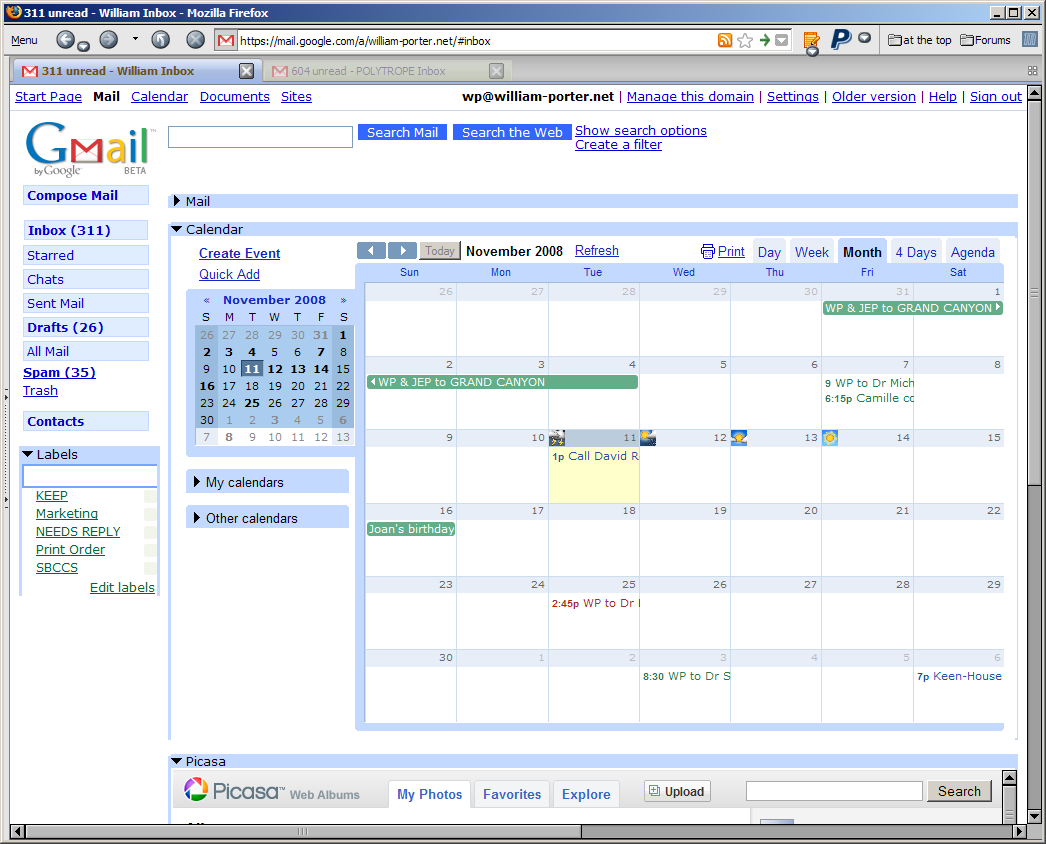
With the add-on installed and configured, I'm able to get access to my mail, Google calendar, and Picasa, all on the same web page. In the screen shot above, notice that I've hidden my mail away and I'm displaying the calendar (in month view); you can also see just the top of my Picasa Web Albums home screen, as well. Integrated Gmail has a number of other options, allowing you to view Google Notebooks and more. It's easy to configure.
It's not a huge deal, I admit. I'm pretty used to opening calendar and Picasa Web Albums in separate tabs. But I particularly appreciate closer integration of mail and calendar in Gmail. NOTE that this works only on the computer - not on my T-Mobile G1.
What I find particularly interesting about this is that it's possible at all. It is possible because Firefox is an open-source browser and because Google provides programmers with the inside info they need (an "API" or application programming interface) to write code that modifies or extends Google's own online applications. The closed approach to software development taken by Apple yields some good results, and a more open environment does produce a lot of garbage. Nevertheless, I prefer the open model and I think it's better for the world of computing in the long run.
Sunday, November 09, 2008
Android talks my language
I was pleased yesterday to discover that many common abbreviations (I've, can't, won't, they're and many others) can be typed in Android without the apostrophe: when you hit the space key, Android adds the apostrophe for you.
But I was really tickled this afternoon when I discovered that one of the abbreviations Android expands automatically is y'all. Very cool!
T-Mobile G1 + Google Android = Something Close to Happiness
I have been reluctant to move to a "smart phone". I am not eager to do a lot of typing on a teeny keyboard, so I am not eager to use a phone for email. I also dislike the idea of being "in touch" 24/7. And I did not want to be tied to a specific email service. For these reasons, I was never attracted to the Blackberry. I liked the Apple iPhone much more. But the iPhone has been too expensive, and I've been tied into a contract with T-Mobile while the iPhone requires service from AT&T. (I know the iPhone can be hacked to work with other providers. Let's just say that, as a software developer myself, I respect Apple's right to set its own terms of use and do not wish to violate those terms.)
But as time has passed, I have felt the desire, if not the need, to be able to access the Internet when I'm away from my computer - to get directions, or to check my email. I've been watching reports about Google's Android mobile phone operating system, and when the first Android phone - T-Mobile's G1 - was released, I checked it out, liked what I saw, and decided to give it a try. After two weeks of use, I've come to like it very much and I'm going to keep it. What follows may look like a review but it isn't. I don't pretend to be comprehensive here. If you want to read more, try this short review at Engadget or this long and very thorough review by Matthew Miller over at C|Net. I'm just offering a few general - and generally positive - thoughts about the G1 and Android, for what it's worth.
The G1 hardware
As a piece of hardware, the G1 isn't perfect, but it's very good. True, it's not quite as sleek and sexy as Apple's iPhone, but it's pretty attractive - compared, say, to Microsoft's Zune, the G1 is a super-model. My thirteen-year old daughter thinks the G1 is very cool, and she especially likes the way it opens to reveal a keyboard, so it passes the thirteen-year old "what's cool" test. And as a grown up, I am aware that looks aren't everything.
The iPhone's minimalist hardware design reflects Apple CEO Steve Jobs's personal devotion to the KISS principle. Apple has never released a a multi-button mouse. Like the Mighty Mouse or the iPod, the iPhone gives users a single hardware control and makes it work very hard. I grant that it's brilliantly done - but ultimately, a slightly more complex hardware design would serve users better. The G1 has six hardware buttons, one of which is also a track-ball. The presence of multiple hardware buttons has the same benefit on a phone as on a camera. Serious digital SLRs like my Pentax K20D have buttons on the body that give the photographer one-touch access to functions that, on "easier" cameras, are buried in menus or accessible only through non-obvious shortcuts. In the same way, the G1's buttons make the phone easy to use.
The keyboard is pretty well designed, too. Many reviewers of the G1 who are also familiar with the iPhone have opined that a hardware keyboard allows for faster, more accurate text input than Apple's virtual keyboard. I'm not entirely sure about that. I have only a little experience with it but the iPhone's virtual keyboard does seem very well designed and, judging from this YouTube video, an experienced user can indeed input text quickly and accurately on the iPhone. But I'm pretty sure that the G1's hardware keyboard is not worse than the iPhone's virtual one and I suspect that, if you want to type a lot and especially if you want to type with correct punctuation, the G1's keyboard is a bit more efficient. And the G1 has an advantage in another respect. While at first, a "closed" G1 looks like its display is smaller than the iPhone's, when you flip out the G1's keyboard, the G1 actually seems to have the advantage, because 100% of the G1's display is still used for display, while a good portion of the iPhone's is taken up with the virtual keyboard. I do want to add that I wish that Android provided a simple virtual keyboard that could be quickly accessed when the phone is not flipped open. There are times when I would like to type just a few letters or numbers, and it would be nice to be able to do so without having to flip open the phone and change its orientation. Perhaps that will be added in a future release of the OS. There's no chance, on the other hand, that your iPhone will get a software update that gives you a physical keyboard.
I have two gripes about the hardware and both have already been voiced by most reviwer's. First, the phone's "chin" seems to get in your way on the right side as you type. But I'm getting used to it. Second, I wish I could plug in earphone's while the phone is being recharged, but I can't.
I should add a comment about battery life. Like many new users, I noticed that the phone's battery seemed to deplete very quickly. But I have learned how to reduce the draw upon the battery (for instance, by turning off GPS satellite use) and by letting the battery run down completely before recharging I've been able to get a longer-lasting charge.
Finally, I find that the G1 works pretty well as a phone. When I'm within range of a wi-fi hotspot, I can use wi-fi for my phone connection, which seems to improve reception and also saves me money by not counting against my minutes. My older T-Mobile phone never worked well at home. The G1 does work fine here, because it's getting its signal from our home network, which provides a pretty strong signal. I am starting to use the G1 for work from my home office in preference to using Skype, which has had numerous problems of its own.
Android, Google's mobile phone operating system
As for the Android OS, I like it a lot. Not surprisingly, it is well suited to users like me who already rely heavily on Google's various online apps, especially Gmail and the Google calendar. I do hope that future versions of Android provide better support for Picasa Web Albums and Google Docs and Spreadsheets.
The Android GUI is attractive and generally easy to use. It took me about 1 minute to set up the phone initially: I simply provided the username and password for one of my Google accounts and I was off to the races. The built-in apps for Gmail and Google calendar work pretty well. Unfortunately, they are tied to a single Google account. If like me, you have several accounts, well, that's a problem. You could have messages from the other accounts forwarded to the account you use on the G1, but as far as I can tell, you can't select different FROM accounts when you send mail in the G1's Gmail application, the way you can when you access Gmail on your computer. I use my william-porter.net account as my primary account now, and I access my software business account (polytrope.com) and my old personal Gmail account using the G1's web browser. It's a little more awkward to get email using the browser, but it's also possible to do certain things that can't be done in the Gmail app, like edit the quoted text to delete unnecessary stuff.
I could say a lot more about my experience with the user interface and the various apps that I've come to use, but I simply want to note that what I like most about Android is its configurability or openness. It's quite easy to put your favorite shortcuts on the G1's three-panel desktop. I'm able to call my wife, or get into my bank's web site, or see today's calendar, with a single touch of the phone. If I'm lost on the road, a single touch turns on the GPS satellite (for the most accurate positioning), another touch opens Google Maps and a quick third touch tells me where the hell I am.
The Android Marketplace is full of free apps that can be downloaded to the phone. I've downloaded a pretty decent free dictionary (Free Dictionary Org), a shortcut-making app (AnyCut) that gives me a lot of options for configuring the way I use the phone, an amazingly capable photo editing app (PicSay) that lets me edit photos taken with the phone's amazingly capable 3 MP camera, a simple notepad (OI Notepad), and an app that lets me manage my ToodleDo tasks on the phone (TooDo). I've even downloaded a few songs from Amazon.com's MP3 market. Price is the same per song as Apple's iTunes Music Store, but the songs come without DRM limitations, which I'm pleased about. I'm going to download a utility that lets me take a riff from a Tom Petty song and turn it into my own ringtone. Neat. (I could do the same thing with the C# fugue from Book 1 of the Well-Tempered Clavier but I respect Bach too much to use music I myself have performed in public for a ringtone. I hope Tom Petty won't take this personally.) The one thing that seems to be missing from the Android Marketplace is a database app. Maybe I should get the Android API and see if I could write one myself, but I'll probably just wait for somebody smarter to do it for me. The way new apps are appearing for Android, I don't think I will have to wait long.
It's not an iPhone - but that's the point
As I confessed at the start of this post, I never bought into the iPhone thing, so I am not handicapped by comparisons to the iPhone. What I gather from the reviews of the G1 that I've read is that the G1 is not as mature as the iPhone but that it's already off to a better start than the first iPhone. But what matters more to me is that the G1 and Android are taking a completely different path from the one that Apple has chosen. In this, Google shows how much smarter it is than Microsoft, which generally seems to imitate Apple without being aware that Microsoft can never be Apple, just as a 800 lb gorilla can never be a gazelle. Google knows what it's good at, though. It's good at offering apps and services that aren't locked into anybody's specific platform. By making Android an open-source project, Google has produced something that might almost be called an anti-OS. Microsoft looks increasingly irrelevant.
*
Postscript: I've just learned that a virtual keyboard is on the road map for future Android development and should be part of a Q1 2009 upgrade to the OS. Cool.
Saturday, November 08, 2008
Quick note about typing on the G1 phone
I find the keyboard on the T-Mobile G1 "smart phone" a tad awkward to use. After all, I am a 110+ wpm touch typist when I can use all 10 of my fingers. Typing with my thumbs is frustratingly slow. But I am getting a little more comfortable with the keyboard every day and already I am able to type faster than I expected to be able to, and I make fewer mistakes than I thought I would.
I think it's better to have a full QWERTY keyboard than to have to type with just the normal dialing pad pad of a phone, where, to type the letter "c" you must hit the "2" key three times! And although I have never typed more than a few words on an iPhone, I think I prefer to have a "real" keyboard rather than a virtual one. I read a statistic a month or two ago that noted that iPhone users account for a disproportionately high percentage of mobile access to the Web - and for a disproportionately low percentage of text messages; the explanation offered was that the iPhone is great for browsing and reading but not so great for typing. I suspect I would feel the same way. On the other hand, there are types when it would be nice to have a virtual keyboard on screen as an option. I have occasionally wished that I could type something simple like a phone number without having to open up the phone to get to the keyboard.
I really wish Android had a utility to auto-expand typed shortcuts, like As-U-Type on the PC or TypeIt4Me on the Mac. It would be a huge help on the small keyboard. The underlying technology seems to be there, because Android already can turn a lone "i" into a capital "I" and can turn two spaces in a row into a period and a space. So the OS is already monitoring keystrokes and can be asked to back up and make quick corrections. Now somebody just needs to figure out how to extend that capability to the "correction" of a user-configurable list of shortcuts, so I could type "tm" and have the phone auto-correct that to "T-Mobile" and so on.
One thing that I love about the way Android handles text entry is the ease with which you can enter accented characters. To type the accented é in "idée" or the enya in "piñon", you simply type the letter and hold it down for half a sec, then select the option you want: è or é or ê or ë. An excellent typist using a Mac can probably enter accented characters even more quickly. But the Mac OS method involves modifier keys and would be hard to implement on the G1. Android's method is certainly a spectacular improvement over what you must do on a PC! I gather that the Apple iPhone uses the same UI trick to enter accents. If Google swiped the idea from Apple, then I have to give Google credit for recognizing a good thing.
Another nice thing about Android's text handling is that you can cut, copy and paste text.
Don't think I'm going to be typing any lengthy epistles on the G1. But for short messages, it's surprisingly satisfactory.
First post from my phone
Here's a pic of my daughter and her friend. This message was written in Gmail on my T-Mobile G1 and automatically posted by email. This must be how Instapundit does it - and now I understand why he keeps his posts short. My thumbs are getting sore!
Do you dare hike to the bottom of the Grand Canyon?

The way up is not the same as the way down
Smart hiking

So, can you hike the Grand Canyon?
Wednesday, September 24, 2008
Hooray: Picasa 3 supports Pentax raw files
About Me
- William Porter
- I am an event photographer living in Dallas, Texas.